When using xterm, if you are not able to see the display show up on your screen, or you get an error, try setting your display.
Find the ip of your local windows desktop using the following command:
C:\>ipconfig


Windows IP Configuration


Ethernet adapter Local Area Connection 6:

   Connection-specific DNS Suffix  . : dev.company.gov
   IPv4 Address. . . . . . . . . . . : 1xx.xx.93.63
   Subnet Mask . . . . . . . . . . . : 255.255.254.0
   Default Gateway . . . . . . . . . : 1xx.xx.92.1

C:\>
The information given in the IPv4 Address is your ip. Now you can set the display on the linux box using this command:
export DISPLAY=1xx.xx.93.63:0.0
Some common reasons for xterm not starting:
- When connecting to the server using putty, check if”Enable X11 Forwarding” checkbox is checked under Connection –> SSH –> X11
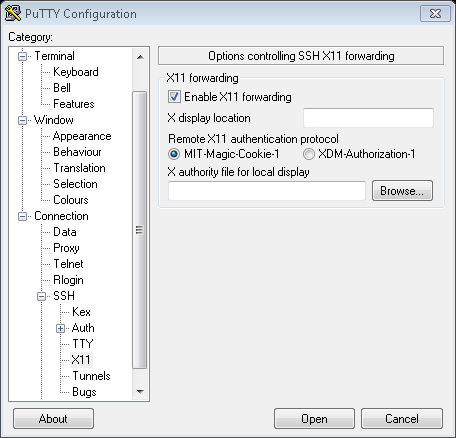
- Make sure Exceed is running
- If that still doesn’t work, check your bash_rc. One time we had the bash_rc setting the DISPLAY to 0, which was causing the xterm to not work. Once we commented out that line and started again, xterm worked.

 Tech Kraft
Leave a comment